
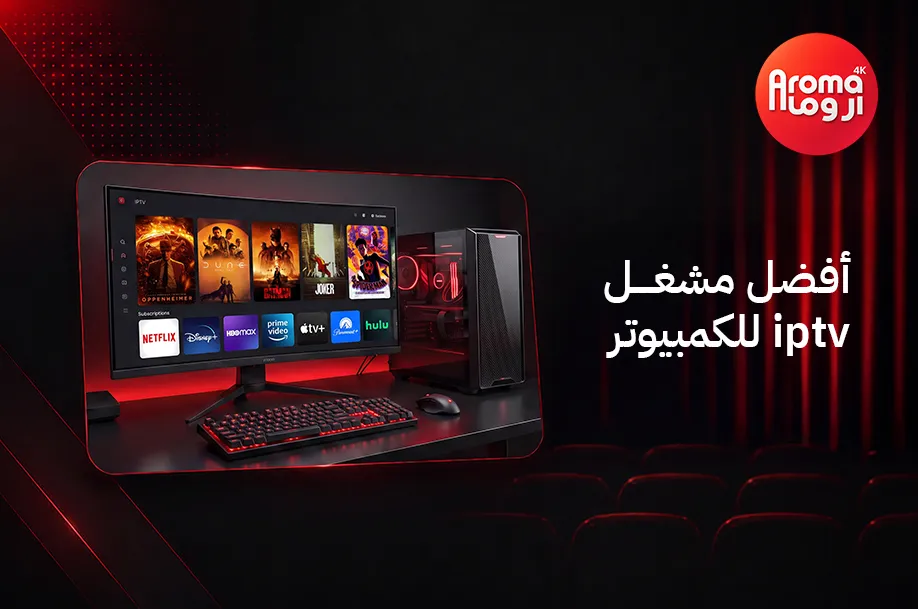
Many users rely on computers to watch channels and movies; however, the quality of the experience is not tied to the subscription alone, but is also affected by the player software used. Choosing an unsuitable player may lead to difficulties in organizing channels or taking advantage of subscription features, even if the service itself is good.
If you are looking for the best IPTV player for PC, this guide will help you identify the most important programs compatible with Windows systems, the key features each program offers, and how to choose the player that suits your usage style for the best viewing experience.
Before choosing a player, first ensure that your subscription is compatible with the most popular players on the Windows system. That is why many users rely on Aroma TV because they work seamlessly with the most popular IPTV players and provide a stable viewing experience.
What makes an IPTV player suitable for a PC?
IPTV players are not all the same in how they work or the features they provide. Therefore, a combination of factors determines how suitable a player is for your device, most importantly:
- Compatibility with Windows systems: Helps run the subscription easily on various system versions, including Windows 11 IPTV.
- Support for multiple subscription methods: It is preferable to choose a program that supports M3U files and Xtream Codes data to facilitate the setup process.
- Organized user interface: Makes accessing channels and entertainment libraries faster and more comfortable.
- Continuous updates: Help improve performance and support new features consistently.
- Playback stability: Provides a smoother viewing experience when switching between channels or playing content.
Do you have devices other than Windows? Check out our guide on the best IPTV player to find the program that perfectly meets your expectations.
Best IPTV players on Windows… Which one suits your needs?
IPTV players on Windows vary, and choosing the most suitable one depends on the usage method and the features the user needs. These programs allow you to play channels via M3U links or Xtream data, with different features offered by each player, most notably:
1- IPTV Smarters Pro
IPTV Smarters Windows is considered one of the most popular IPTV players for computers, thanks to its organized interface and support for multiple playback methods.
Key Features:
- Supports Xtream Codes and M3U files.
- Displays channels, movies, and series in a single interface.
- Supports Electronic Program Guide (EPG).
- Suitable for Windows 11 IPTV and older versions.
2- VLC Media Player
VLC IPTV is a suitable option for those looking for a free and simple program to play IPTV on Windows devices.
Key Features:
- Supports playing M3U files easily.
- Compatible with most Windows versions.
- Light on device resources.
- Supports playing many video and audio formats.
3- MyIPTV Player
It is a suitable option for users looking for an easy-to-use IPTV Player for Windows, as it is available via the Microsoft Store and is characterized by easy installation and operation.
Pros:
- Supports M3U files and Electronic Program Guide (EPG).
- Simple and easy-to-use interface.
- Ability to save favorite channels.
- Compatible with various Windows versions.
4- Kodi
Provides a flexible experience for users who want to customize how they play IPTV and manage content.
Pros:
- Supports IPTV through plugins.
- Ability to customize the interface.
- Combines IPTV playback and media management.
- Suitable for advanced users.
How to play IPTV on PC? Simple steps to get started
Playing IPTV on a computer does not require significant technical expertise; most programs provide easy setup steps that take only a few minutes. To ensure you start watching without complications, follow these steps:
- Install the appropriate player on your device.
- Get the subscription data from your service provider.
- Add the M3U file or log in using Xtream Codes if the service supports it.
- Wait for the channels and content to load.
- Start watching, and organize your favorite channels for easier access later.
Upgrade your viewing experience on Windows with Aroma store subscriptions, designed to be compatible with the most popular IPTV players on PC, giving you easier and more stable playback. If you need help choosing the right player or activating your subscription, you can contact the technical support team via WhatsApp to get started in minutes.
And if you are still in the stage of choosing the right subscription before setting up the program, it is useful to review the guide The best IPTV subscription in Saudi Arabia to learn about the most important criteria for choosing a subscription and comparing packages before you start.
Why might you face problems when playing IPTV on Windows?
IPTV Windows playback issues may appear due to more than one factor, and identifying the real cause helps improve the viewing experience. Among the most important reasons are:
- Using an outdated version of the IPTV player.
- The player is incompatible with the Windows version or the subscription data.
- Weak or unstable internet connection.
- Device memory is full or too many programs are running in the background.
- Network drivers or the operating system are not updated.
- Entering subscription data incorrectly.
How to fix IPTV playback issues on Windows?
After identifying the cause, fixing the problem becomes easier, as some simple steps help improve playback performance and reduce glitches that may affect the viewing experience, most notably:
- Update the IPTV player to the latest version.
- Ensure the player is compatible with the Windows version being used.
- Restart the program and the device after making any changes.
- Use a more stable internet connection whenever possible.
- Close applications that consume device resources in the background.
- Review subscription data and ensure it is entered correctly.
- Update Windows and network drivers periodically.
Also, using a subscription from Aroma official website helps reduce many playback problems resulting from subscription data or compatibility with different players, while benefiting from technical support when needed.
To ensure stable performance at all times on your various devices, don’t miss reading the most important secrets and practical tips in our comprehensive article on solving IPTV buffering issues on receivers.
Most Frequently Asked Questions about the best IPTV player for PC
Do I need a different program for each version of Windows?
No, most IPTV player programs for Windows support more than one version, including Windows 11 and previous versions.
Can I play IPTV on a PC without installing a program?
Yes, some services offer playback via a browser, but using the best IPTV program for PC usually gives you a more stable and organized experience.
Can I play more than one IPTV list within the same program?
Yes, some IPTV programs for PC support adding more than one playlist, making it easy to switch between subscriptions or organize content within a single interface.
Can I use the keyboard to control the IPTV player on the PC?
Yes, most player programs provide keyboard shortcuts that help you navigate between channels, control volume, and play or pause content easily.
Choose the right player… and enjoy a better experience
In the end, choosing the best IPTV player for PC is what gives your subscription the best performance on your computer. The more compatible the program is with your device and the more it supports different playback methods, the smoother and more stable your viewing experience will be.
If you are looking for a subscription that works efficiently with the most popular Windows players, contact official Aroma store via WhatsApp, learn about the packages compatible with various IPTV players, and choose the subscription that suits your needs with confidence.